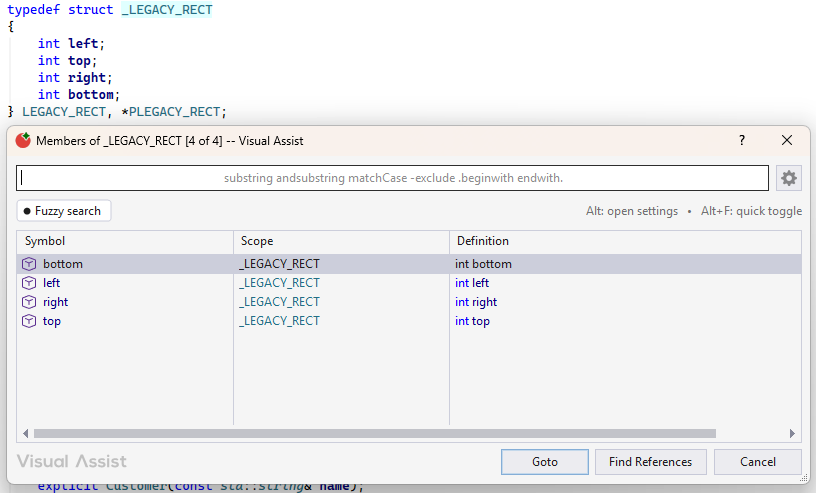
Use GoTo Member to browse members of a class, or "members" of other data structures. GoTo Member opens a dialog that supports filtering, fuzzy search, copying of symbol names, and jumping to definitions.
GoTo Member is available for:
- classes
- enums
- interfaces
- namespaces
- structs
- typedefs
Browsing symbols associated with a structure using GoTo Member can be more efficient than browsing with other navigation features of Visual Assist. GoTo Member opens a dialog with fewer symbols than Find Symbol in Solution (Shift+Alt+S); the latter includes all symbols of a solution. GoTo Member is a more feature-rich alternative to List Methods in File (Alt+M), for users who define all members of a class within a single file, even though Alt+M is available from more locations.
Visual Assist versus Visual Studio
Visual Studio 2017 includes Go to Member, which is similar in name only to GoTo Member of Visual Assist. The version built into the IDE lets one search among all symbols considered members in an entire solution. The Visual Assist implementation, on the other hand, provides quick access and browse capability to members of the current symbol in the editor. The Visual Assist implementation is context aware; the IDE version is not. Go to Member in Visual Studio 2017 is similar to Find Symbol in Solution in Visual Assist.
Access
GoTo Member is available from types, variable names, and white space. When invoked on a type or variable name, GoTo Member opens a dialog with all members of the respective data structure. When invoked in white space within a data structure, e.g., class or enum, GoTo Member opens a dialog with all members of the enclosing structure.
Invoke the command via the VAssistX menu (Alt+X, M) or via a shortcut assigned to VAssistX.GotoMember.

You can also invoke GoTo Member via the menu produced by GoTo Related (Shift+Alt+G)

You can access all of the features of GoTo Member via keyboard and mouse.
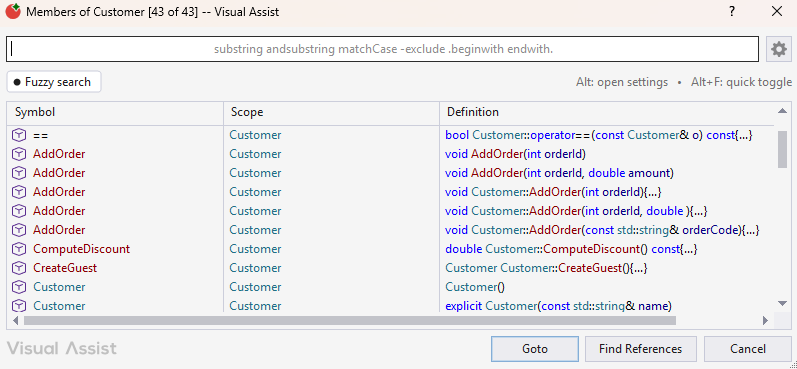
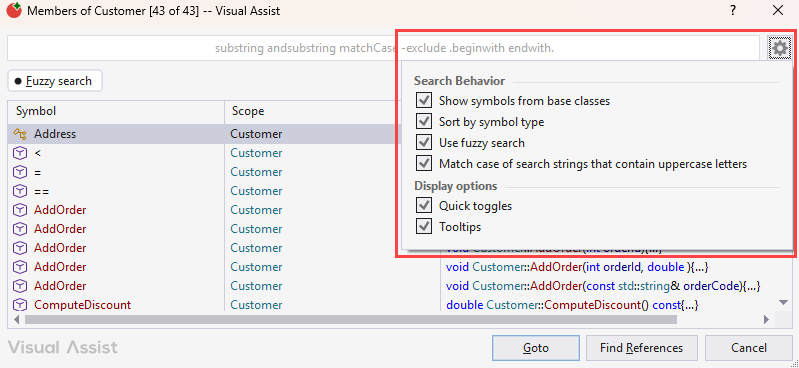
The GoTo Member dialog contains a filter field, a list of symbols, a quick-toggles strip, and a gear icon that opens the menu of options.
Options
Click the gear icon in the dialog to open the options menu.
- Show symbols from base classes (Alt+S)
- Sort by symbol type (Alt+T)
- Use fuzzy search (Alt+F)
- Match case of search strings that contain uppercase letters.
- Quick toggles
- Tooltips (Alt+L)
Quick Toggles
The quick-toggles strip provides one-click access to the options you change most often.
- Show base classes (Alt+S)
- Sort by type (Alt+T)
- Fuzzy search (Alt+F)
Each quick toggle is the same setting as the matching command in the gear menu. Changing one changes the other. To hide the strip, clear Quick toggles in the gear menu.
Fuzzy Search
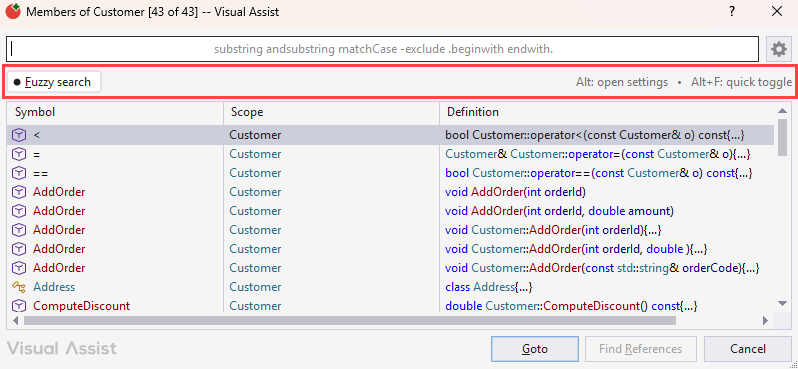
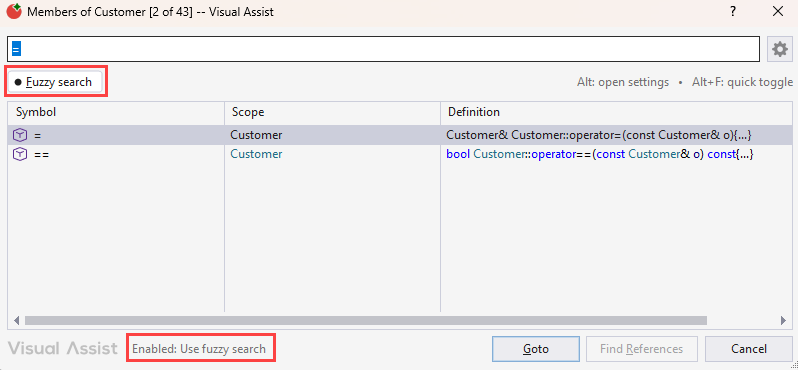
Turn on Fuzzy search to find a symbol when you remember only some of its characters, or not the exact sequence.
Fuzzy search is a toggle. Turn it on for a single lookup and off again, or leave it on. When Fuzzy search is off, the filter matches symbols whose names include the string(s) you type.
Keyboard Shortcuts
Alt shortcuts work while the dialog has focus, so you can change an option without leaving the filter field or using the mouse. The shortcut for an option is shown beside its name in the gear menu.
- Alt+S - Toggle Show base classes
- Alt+T - Toggle Sort by type
- Alt+L - Toggle Tooltips
- Return - Jump to the definition of the selected symbol
- Double-click - Jump to the definition of the symbol
GoTo Member for a Class
The GoTo Member dialog for a class, or from white space within a class, includes all members of the class, and optionally, members of base classes. Turn on Show base classes (Alt+S) to include members of base classes. Double-click, or select a symbol and press Return, to jump to the definition of the symbol.
Hovering
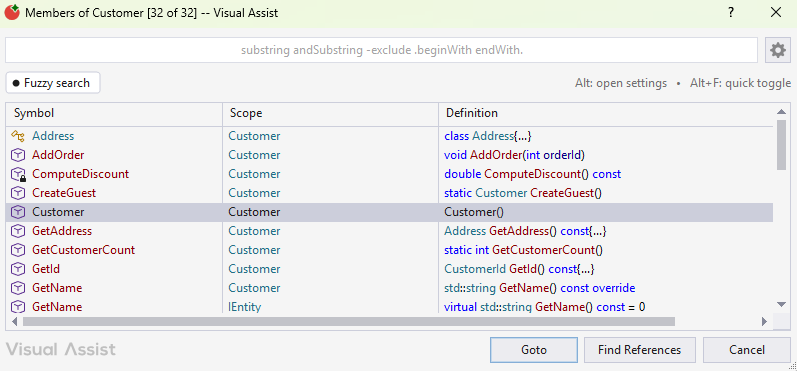
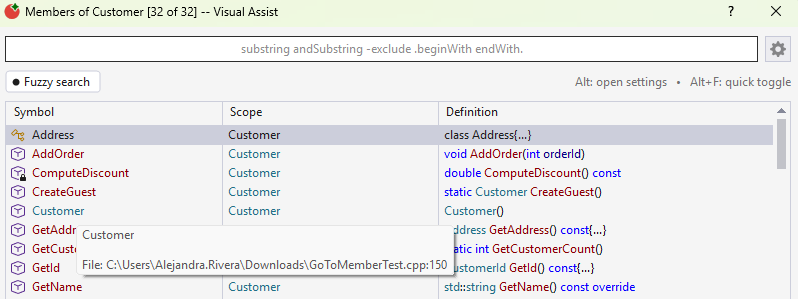
Hover over a symbol to see its full name and location of its definition.
Hover over truncated cells to see full values.
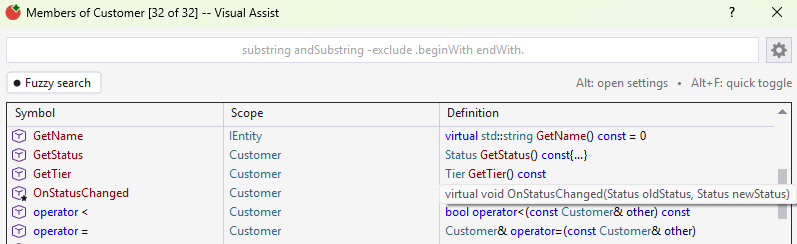
To hide the tooltips that contain full names and locations, clear Tooltips in the gear menu, or press Alt+L. The tooltips for truncated cells are still available.
Context Menu
The context menu in the list portion of the dialog permits copying of symbol names and finding of all references to symbols.
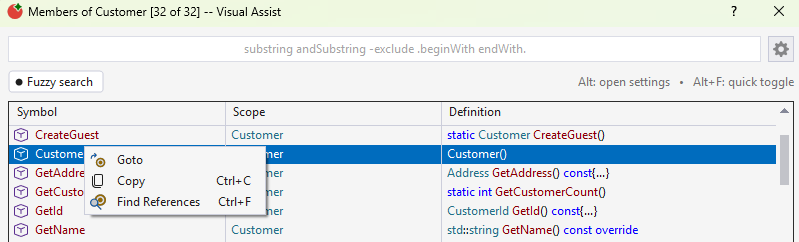
Options for the dialog, such as tooltips, are in the gear menu.
Filtering
Type one or more strings to filter a dialog to include only symbols whose names include the string(s).
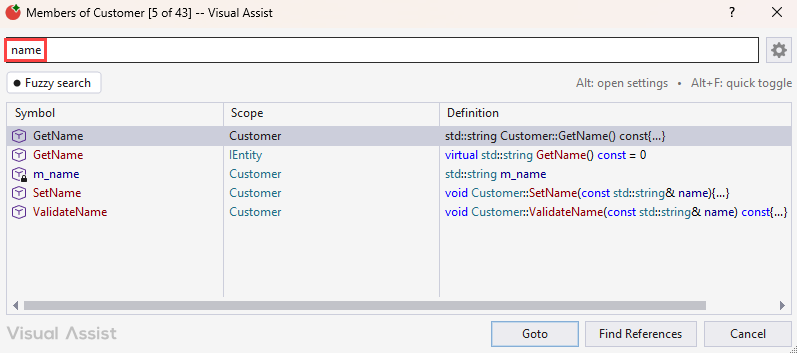
Use the following characters to refine a filter:
- Precede a filter with a dot to include only symbols that begin with the filter, or that contain the dot and substring.
- End a filter with a dot to match the ends of symbols. For example, “name.” finds symbols that end with “name”.
- Precede a filter with a hyphen to exclude symbols (negative filtering).
By default, filtering is not case sensitive. Turn on Match case in the gear menu to make it case sensitive. Turn on Fuzzy search to match characters that are not adjacent.
Sorting
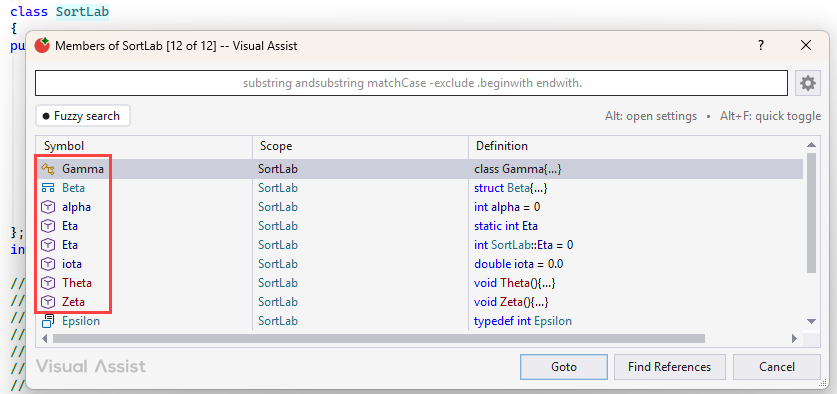
Types of symbols within the dialog are identified by icons adjacent to symbol names. For a class, types might include member, struct, and nested class.
If a dialog contains symbols of multiple types, e.g. those of a class or namespace, you can sort symbols by type. Turn on Sort by type in the quick-toggles strip (Alt+T), or choose Sort by symbol type in the gear menu. If not turned on, symbols are sorted by name.
When symbols are sorted by type, symbols are grouped by type, then sorted by name.
GoTo Member for an Enum
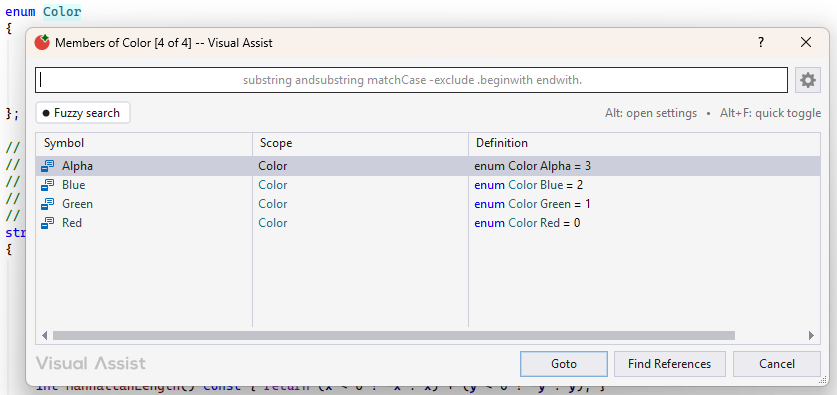
The GoTo Member dialog for an enum includes all enumerators of the enum.
GoTo Member for an Interface
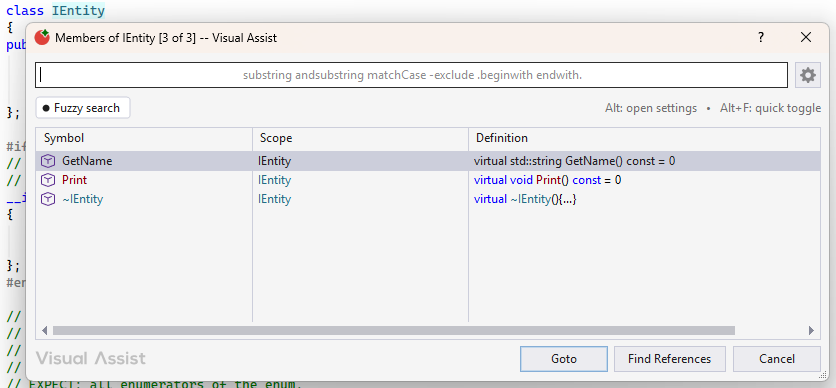
GoTo Member for an interface displays members, as it does for a class.
GoTo Member for a Namespace
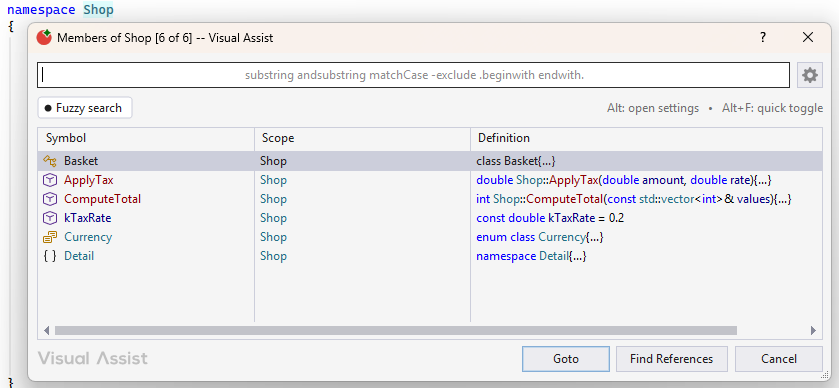
For a namespace, GoTo Member displays all symbols available in the namespace.
GoTo Member for a Struct
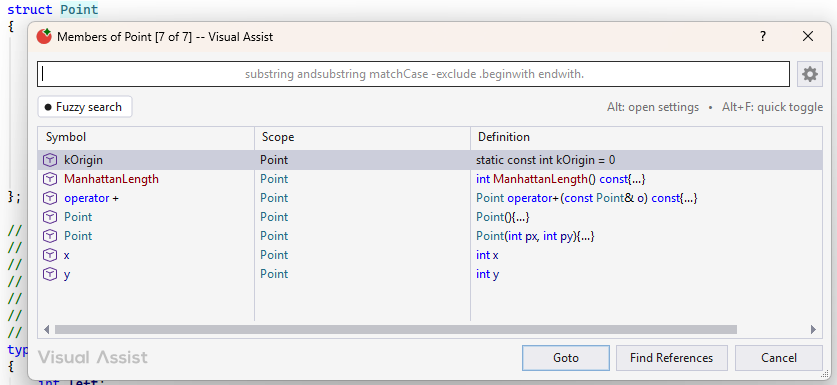
The GoTo Member dialog for a struct includes all symbols declared in the struct.
GoTo Member for a Typedef
For a type defined as a data structure with "members", e.g. a typedef for a struct, the dialog for GoTo Member includes the "members" of the underlying structure.